---
title: "Running Form Concierge Using Query String Parameters"
source_url: https://help.chilipiper.com/hc/en-us/articles/360053021574-Running-Form-Concierge-Using-Query-String-Parameters
article_id: 360053021574
updated_at: 2025-06-25T17:43:40Z
---
This article outlines how to run Chili Piper using query string parameters. If you have a redirect configured to pass through form field values and reconstruct a URL such as the following:
[https://www.yourwebsite.com/thank-you-cp?FirstName=Chili&Lastname=Piper&Email=chilii%40chilipiper.com&Company=ACME&State=NY*](https://www.yourwebsite.com/thank-you-cp?FirstName=Chili&Lastname=Piper&Email=chilii%40chilipiper.com&Company=ACME&State=NY)
Then, you can automatically load the Chili Piper script on the thank you page we are redirecting to and load the calendar.
## When can this be helpful?
* **Email Campaigns.** i.e., CTA to "Book meeting" clicked from an email → redirected to a landing page with query string parameters appended to the URL → Load your Chili Piper router on the landing page using the query string parameters added from the Email CTA.
* **Full Page form redirects** \- i.e., Form Filled → Redirect to a Thank You Page with query string parameters appended to the URL → Load your Chili Piper router on the landing page using the query string parameters added from the Form submission.
* **Chat tools** \- i.e. Drift, Intercom, etc.
The article will cover:
* Customize ChiliPiper.getQuery
* Add it to your page
_*Please note the above is just an example of the URL format and isn't meant to run Concierge._
* * *
## Customize ChiliPiper.getQuery:
Where **YOUR_DOMAIN** is your Chili Piper Account Name & **_router_** is the name of your router as it appears in the code. These values can be found with your _Concierge || Inbound Router_ settings:
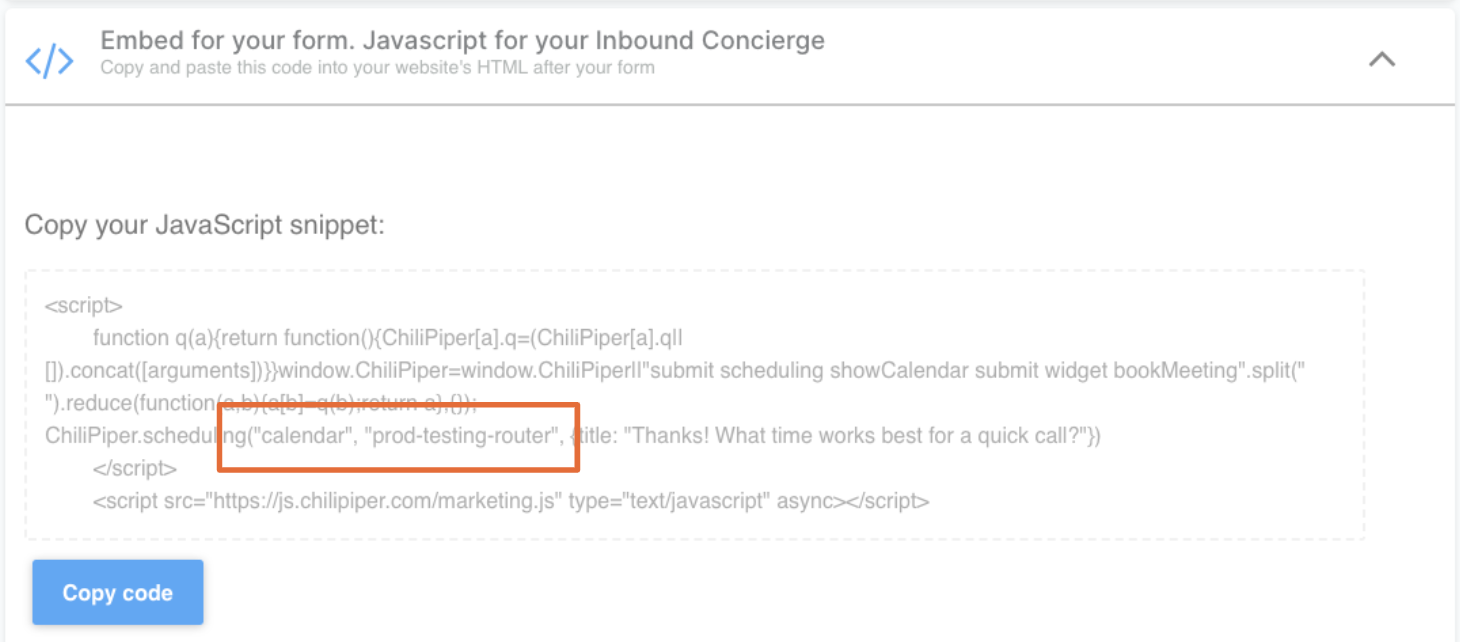
In the example above, the first string _, calendar, is the account name,_ and the second string, _prod-testing-router,_ is the router name.
Add _queryVariable_ is required so that the Chili Piper script will **only run** if the Query String **contains** the _Email_ variable. This can be adjusted. Otherwise, we are looking for _email_ by default.
The Chili Piper script will **not run** if an email address is not provided so that we do not error out and cause a meeting to be booked where no calendar invite is sent to the customers/prospects. The option below defines which value must be in the URL to run correctly.
{ queryVariable: "Email" }
Form mapping will be applied automatically to map your query string variables to the Chili Piper fields in your related Chili Piper form.
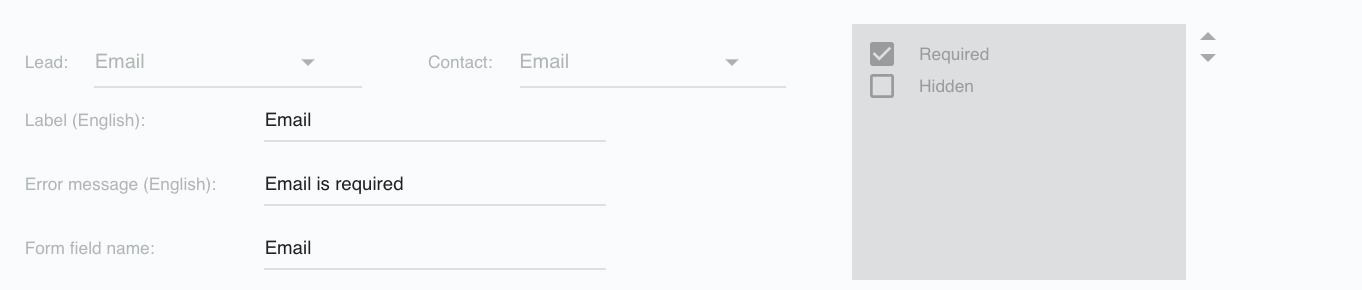
If you do not see Chili Piper run, you will want to ensure that email is correctly mapped as _Email_ for the F _orm field name_ in the form mapping associated with your router:
* * *
## Add it to your page
Add this script to the body of your _thank you_ page and test!